Some of you prefer to enjoy movies and music in an old-fashioned way like buying CDs/DVDs. In real life, these CDs/DVDs are expensive and meaningful for you. However, as time goes on, CDs/DVDs tend to be corrupted or scratched seriously. In this situation, they will become unreadable. Then, how to recover data from corrupted or scratched CD/DVD will become an urgent issue you concern about.
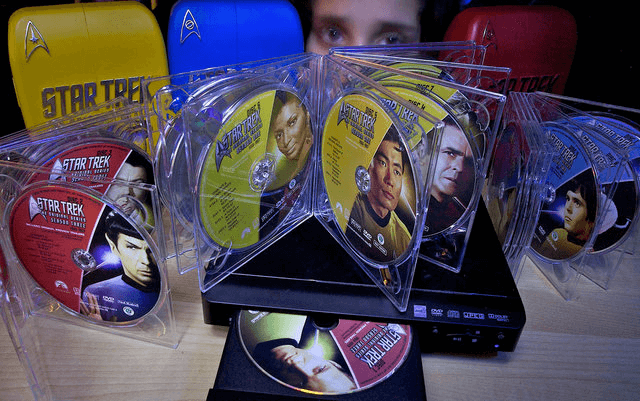
Some of you think it is difficult to recover data from unreadable CD/DVD. But the reality is that if you own a piece of professional data recovery software, CD/DVD data recovery will become an easy job. Now, please read the following part to learn such a tool.
Part 1: How to Recover Data from Corrupted or Scratched CD/DVD
In this post, we recommend you to use the free data recovery software – MiniTool Power Data Recovery – to recover data from corrupted or scratched CD/DVD.
This software is specially designed to recover your lost data from different kinds of storage devices such as internal hard drive, external hard drive, removable disk and CD/DVD discs. Meanwhile, this tool can also show you the existing data on the drive. Thus, you can firstly download and install this software on your computer to have a free trial if you are using Windows 7/8/10.
Step 1: After the installation, you can put the CD/DVD into your computer and open this software to enter its main interface. Here, you can see four recovery modules on the left list: This PC, Removable Disk Drive, Hard Disk Drive and CD/DVD Drive. Since you want to recover data from corrupted or scratched CD/DVD, you should choose CD/DVD Drive module. Then the target CD/DVD will be displayed on this interface. In this post, F: is the target drive. Just select it to continue.

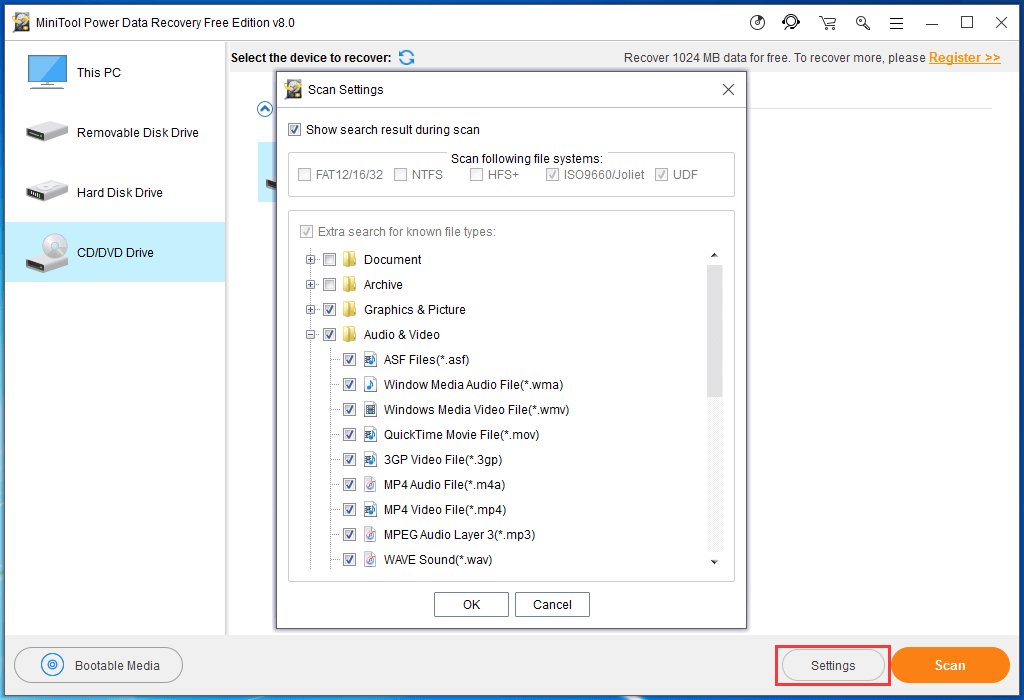
Step 2: If you want to recover some certain types of data from your corrupted or scratched CD/DVD, you can click on Settings button which is in the bottom right corner. Then, this software will pop out a small interface as follows. In this interface, you can unfold every folder to uncheck the unwanted data types. Then, please click on OK button to go back to the main interface.
Step 3: Next, you need to click on Scan button to start the scanning process. Here, you will discover that you can see the current scan result, choose the files you want to recover and retrieve them during the scan process. However, to get the best recovery result, you’d better wait until the full scan is finished.
Step 4: When the scan process is completed, you will get the scan result as shown below. Next, you can unfold the folder from the left list to choose the data you want to recover. After that, you can click on Savebutton to choose a suitable path on your computer to keep these selected files.
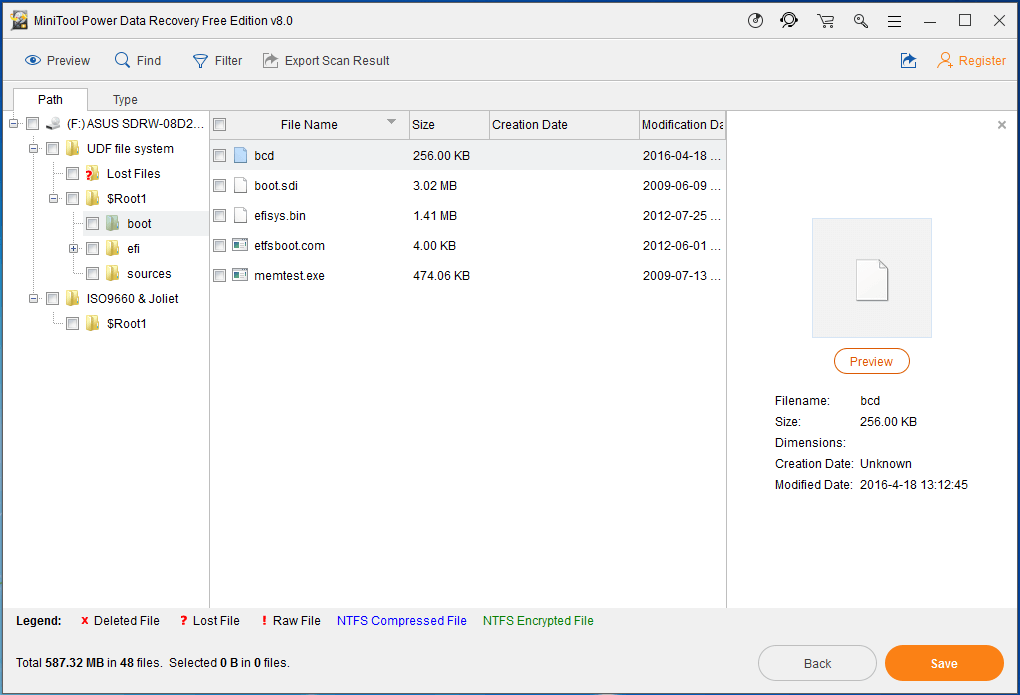
Tips: If there are so many files in the scan result, it will be difficult for you to choose the data you want to recover. This software has two useful functions which can solve this issue perfectly: Find and Filter.
1. Find
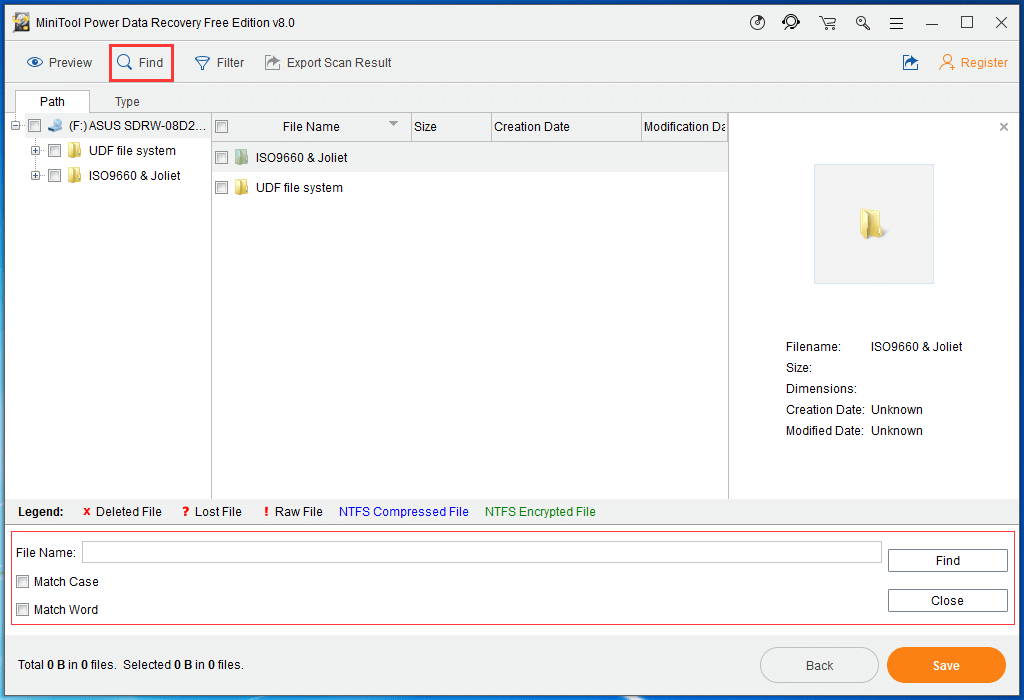
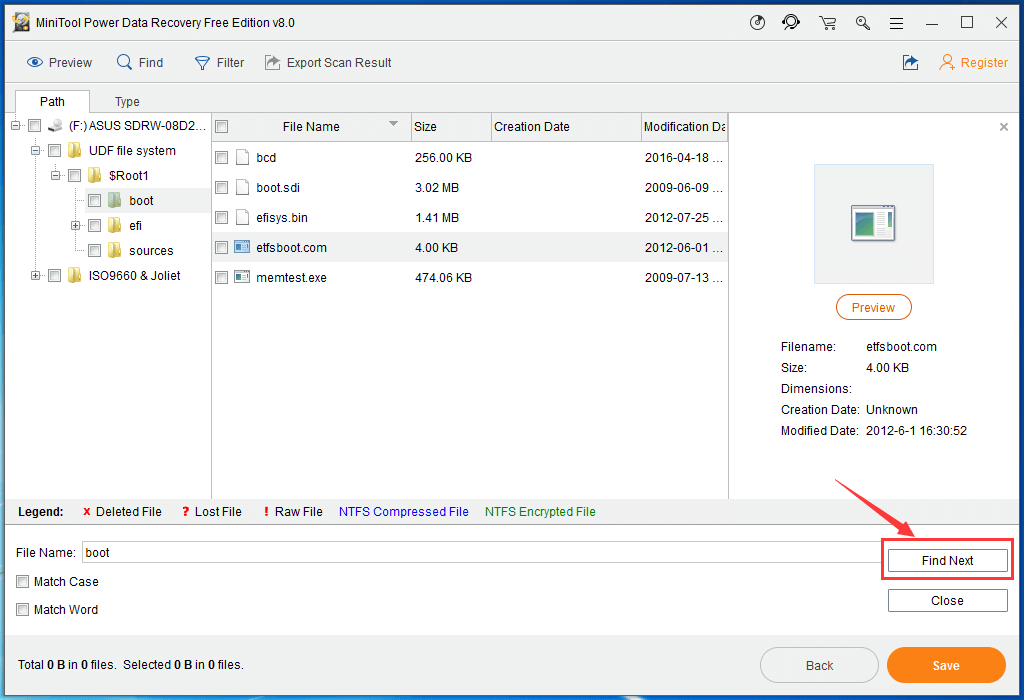
After clicking on Find function, this software will show you the following picture. You can enter the file name in it. Then, you can check Match Case or Match Word according to your own need. After that, please click on Find button to highlight the target files one by one. Then, it will be convenient for you to choose the data you want to recover.
2. Filter
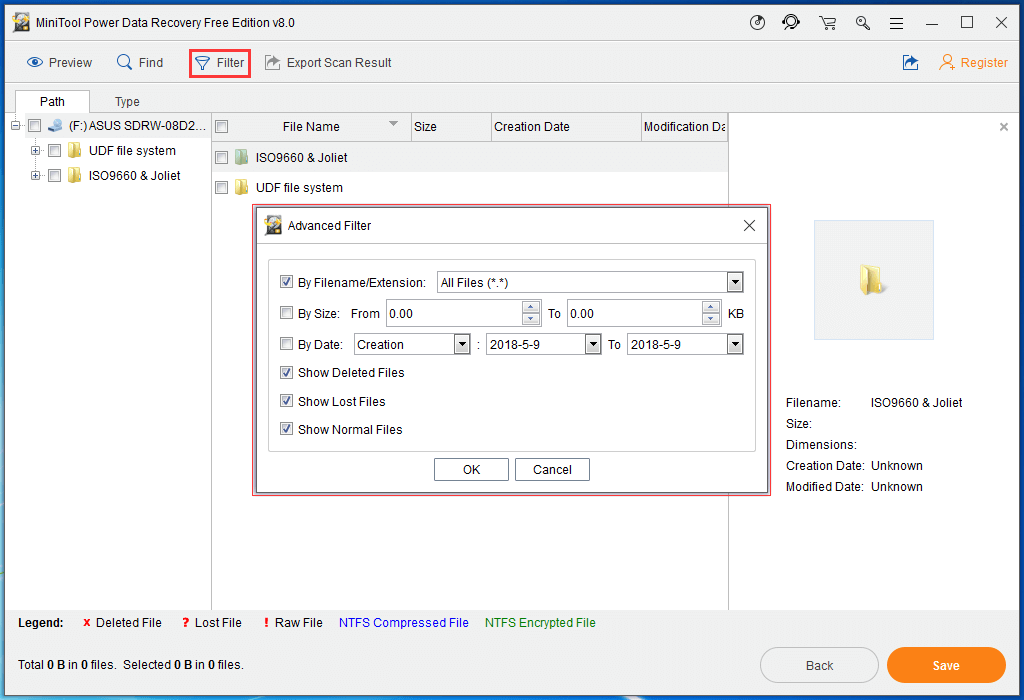
If you forget the name of the file you want to recover, you can try Filter function to find your wanted files. After clicking this function, this software will pop out an Advanced Filter interface as shown . Here you can filter the scanned files on your CD/DVD By Filename/Extension, By Size and By Date. At the same time, you can make this software only show you the deleted files, lost files or normal files by using the rest three options.
Till now, your aim to recover data from damaged CD/DVD is achieved. And these recovered files can be used directly.
“It will be an easy job to do CD/DVD data recovery if you are using MiniTool Power Data Recovery. You can share this software with your friends to help them out.”
If you want to recover files with this software, you’d better use the advanced edition of this software.
What Can You Get from an Advanced Edition of MiniTool Power Data Recovery?
After you get an advanced edition of MiniTool Power Data Recovery, you can acquire the following rights:
1. Recover all of your lost and deleted data without limitation as long as they are not overwritten by new data.
2. The Deluxe and above editions of this software offer MiniTool Bootable Media Builder which can create a bootable media. With this bootable media, you will be allowed to recover your lost and deleted data when your computer can’t boot normally. Now, you can learn how to use the Bootable Media Builder from this article: How to create a WinPE-based bootable media?
Part 2: How to Fix a Scratched CD/DVD
In many cases, a scratched CD/DVD can be fixed and you can copy the data on it to a safe place to avoid data loss issue. In this part, we summarize some solutions to fix a scratched CD/DVD. Please keep reading:
Solution 1: Wax the scratched CD/DVD
This is a temporary solution. So, you need to back up the data on the scratched CD/DVD when this solution works.
Lip balm, Vaseline, liquid car wax, furniture wax and neutral shoe polish can be used to wax the scratched CD/DVD. Just choose the one that you have on hand and then apply a very thin layer on the shiny side of the scratched CD/DVD. When the layer is dry, you can use a piece of clean, soft and lint-free cloth to wipe off the excess from inside to outside on the surface.
After these preparations, you can test the CD/DVD to check whether it is readable. If the result is positive, please back up the data on it immediately.
Solution 2: Clean the scratched CD/DVD
Sometimes, your CD/DVD is not scratched really. Perhaps, it can’t play properly due to dust, oil, or other contaminants on its surface. In this situation, you can just clean the CD/DVD disc to fix it.
You can wash your CD/DVD with warm water to remove dust from its surface. If the dust is accumulated on the surface, you need to rub it gently with a finger during the wash process.
If water can’t wash off the dust effectively, you can choose to use a mild detergent or soap water. Alcohol is also available for cleaning the disc. However, you’d better use a cotton swab to do this job.
Do not use cloth or towel to dry the CD/DVD. You can shake it to drip off the excess water and let it air-dry. It is forbidden to place it in the sun.
If this solution works, you should also make a backup of the data on the CD/DVD.
Solution 3: Refinish the scratched CD/DVD
If the above two solutions can’t help you out, you can take the scratched CD/DVD to a CD/DVD store and let the professional refinish it.
Solution 4: Change the CD/DVD Player
Sometimes, an old CD/DVD player may scratch your discs. So, if almost all of your CDs/DVDs are scratched, you can consider purchasing a new CD/DVD player.
Part 3: Summary
In this post, we show you how to recover data from corrupted or scratched CD/DVD by using the professional third-party program – MiniTool Power Data Recovery. CD/DVD Drive module is specially designed to recover data from unreadable CD/DVD.
Besides, we introduce four possible solutions to fix your scratched CD/DVD. You can try them one by one.
Should you have any question when you are using MiniTool software, please feel free to contact us by sending an email to support@minitool.com. Or, you can leave a message on the following comment area. We will reply you as soon as possible.

 AndroidGamesandAppsFullVersionFreeDownload